1. Open the Visual Studio 2012.
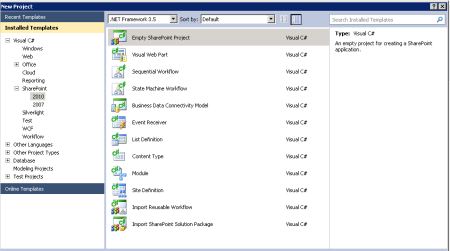
2. Click New Project.
3. Select the Empty SharePoint Solution Template.
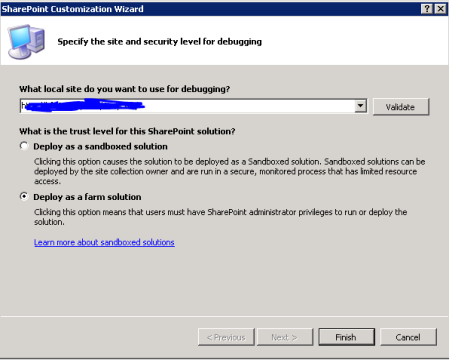
4. An empty project will be created as below.

5. Right click on the Project and Select New Folder

6. Name the folder as Jobs.
7. Add a class inside Jobs folder.

8. The class will look like this.
1
| using System; using System.Collections.Generic; using System.Linq; using System.Text; using System.Threading.Tasks; namespace MyNamespace { class MyTimer { } } |
9. Modify the class as shown below. i.e., we are going to inherit SPJobDefinition class and make the class as public and create the constructors as shown below.
1
| using Microsoft.SharePoint.Administration; using System; using System.Collections.Generic; using System.Linq; using System.Text; using System.Threading.Tasks; namespace MYNamespace { public class MyTimer : SPJobDefinition { HashSet<string> seenUids = new HashSet<string>(); public MyTimer () : base() { } public MyTimer (string jobName, SPService service, SPServer server, SPJobLockType targetType) : base(jobName, service, server, targetType) { } public MyTimer (string jobName, SPWebApplication webApplication, string strUrl) : base(jobName, webApplication, null, SPJobLockType.ContentDatabase) { this.Title = jobName; } public override void Execute(Guid ContentDatabaseID) { try { } catch (Exception ex) { } } } } |
10. Now the timer class is ready. Now we need to deploy this timer in to the SharePoint farm. To do this, we need to create a Feature and a FeatureReceiver. On the Activation of the Feature, we are going to add this timer into our SharePoint Farm.
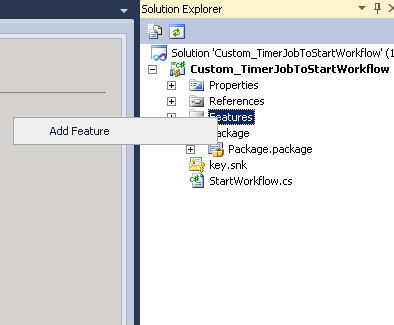
11. Add a feature by right click on the Features folder.

12. Name the Feature and give the Description appropriately. Make the Scope of the Feature as Webapplication.

13. The above point is the key factor in SP2013. Because, in SP2010, we can give the scope as SiteCollection and can update the WebApplication properties from the FeatureReceiver. To do that, we have to run the power shell script to get rid of “Access Denied” Exception. To be more precise, Whenever, we are trying to update any of the WebApplication Properties, sharepoint will throw an “Access Denied” Exception. Please have a look into the below piece of code inside the FeatureActivated Event.
1
| public override void FeatureActivated(SPFeatureReceiverProperties properties) { try { SPSecurity.RunWithElevatedPrivileges(delegate() { SPWebApplication webapplication = properties.Feature.Parent as SPWebApplication; if (webapplication.Properties.Contains("SiteURL")) webapplication.Properties.Remove("SiteURL"); webapplication.Properties.Add("SiteURL", "http://MysitecollectionURL"); webapplication.Update(); foreach (SPJobDefinition job in webapplication.JobDefinitions) { if (job.Name == "SathishSampleTimer") job.Delete(); } Mytimer timer = new Mytimer("SathishSampleTimer", webapplication, "http:// MysitecollectionURL "); SPDailySchedule schedule = new SPDailySchedule(); schedule.BeginHour = 01; schedule.BeginMinute = 00; schedule.BeginSecond = 00; schedule.EndHour = 01; schedule.EndMinute = 01; schedule.EndSecond = 00; timer.Schedule = schedule; timer.Update(); }); } catch (Exception ex) { } } |
On the WebApplication.Update(), Usually we will get an “Access Denied” Exception. To overcome this, either from C# or through the PowerShell Script, we will rectify them on the SharePoint 2010. The c# or PowerShell Script is as follows.
1
| if (SPWebService.ContentService.RemoteAdministratorAccessDenied == true) { SPWebService.ContentService.RemoteAdministratorAccessDenied = false; SPWebService.ContentService.Update(true); } |
Or by using the following powershell script, we can get rid of the Access Denied Exception in SharePoint 2010.
1
| function Set-RemoteAdministratorAccessDenied-False() { [System.Reflection.Assembly]::LoadWithPartialName("Microsoft.SharePoint") > $null [System.Reflection.Assembly]::LoadWithPartialName("Microsoft.SharePoint.Administration") > $null # get content web service $contentService = [Microsoft.SharePoint.Administration.SPWebService]::ContentService # turn off remote administration security $contentService.RemoteAdministratorAccessDenied = $false $contentService.Update() } Set-RemoteAdministratorAccessDenied-False |
14. Why we are going for PowerShell is, even sometimes, SPWebService.ContentService.Update(true); will also throw access denied exception.
15. But in SP 2013, even after doing the above also, I was getting “Access Denied” exception. After spending couple of hours, identified that, the Security in SP 2013 has been increased and only, if the WebApplication Scoped Feature can make any changes on the WebApplication Level. Because, many user will be having access to different site collections. When they modify any of the Feature on any SiteCollection, it should not affect the WebApplication. For that reason, SP 2013 gives way only for the WebApplication scoped Feature to access any of the WebApplication property.
16. Hence, now we are ready to deploy our solution into the SharePoint Environment.
17. One more important thing, is for our understanding, make the default activation of the feature as false.

18. Even immediate below, “Always Force Install”, make it as true.
19. Make sure that on the Feature DeActivation, we are deleting the timer job. This will help us to clean the timer job, whenever the Feature gets deactivated.
1
| public override void FeatureDeactivating(SPFeatureReceiverProperties properties) { try { SPSecurity.RunWithElevatedPrivileges(delegate() { SPWebApplication webapplication = properties.Feature.Parent as SPWebApplication; foreach (SPJobDefinition job in webapplication.JobDefinitions) { if (job.Name == "SathishSampleTimer") job.Delete(); } }); } catch (Exception ex) { } } |
20. Now, we are ready for the deployment.

21. Then go to the Central Administration. Manage Web Application. Select your Web Application on which the Solution has been Deployed. Select Manage Features.

22. You will get the below screen.

23. Activate the feature.
24. On the Activation, we can see our timer job get listed on the Monitoring->Review Job Definitions.

25. Now, another challenging issue, regarding the debugging of Timer Job. We need to attach with the process OWSTimer.exe to debug the timer job. On the Execution, Execute will be the first method get invoked. Put a break point over there and attach to OWSTimer.exe.
26. Sometimes, we will get a strange exception like “UnAble to evaluate Expression” while debugging the timer job. This is happening because of the cross threads between the w3wp.exe and OWSTimer.exe. To overcome this, restart the IIS. This will clear the w3wp process. Then come to Services.msc and restart the SharePoint Timer Services. This will restart the OWSTimer and make sure that the latest dll is referred with the Debugger.

27. Whenever you make any code changes and re-deploy the solution, restart the Timer Service too. This will reduce your debugging time with strange issues. J.
28. Another Important thing to be noted as Deployment Target. Whenever you want to deploy your timer job into WebApplication scope, you will get an “Assembly cannot be loaded” loaded exception. This is because of whenever you are trying to deploy a timer, the timer will search for the DLLs from the GAC and not from the Bin of the Web Application. Hence, always, the timer job should be deployed on the GlobalAssemblyCache.
With this, the sample timer job has been created and the tips and tricks to debug and fix the errors were discussed. If you find, I missed anything or anything is wrong, please feel free to comment on that.